
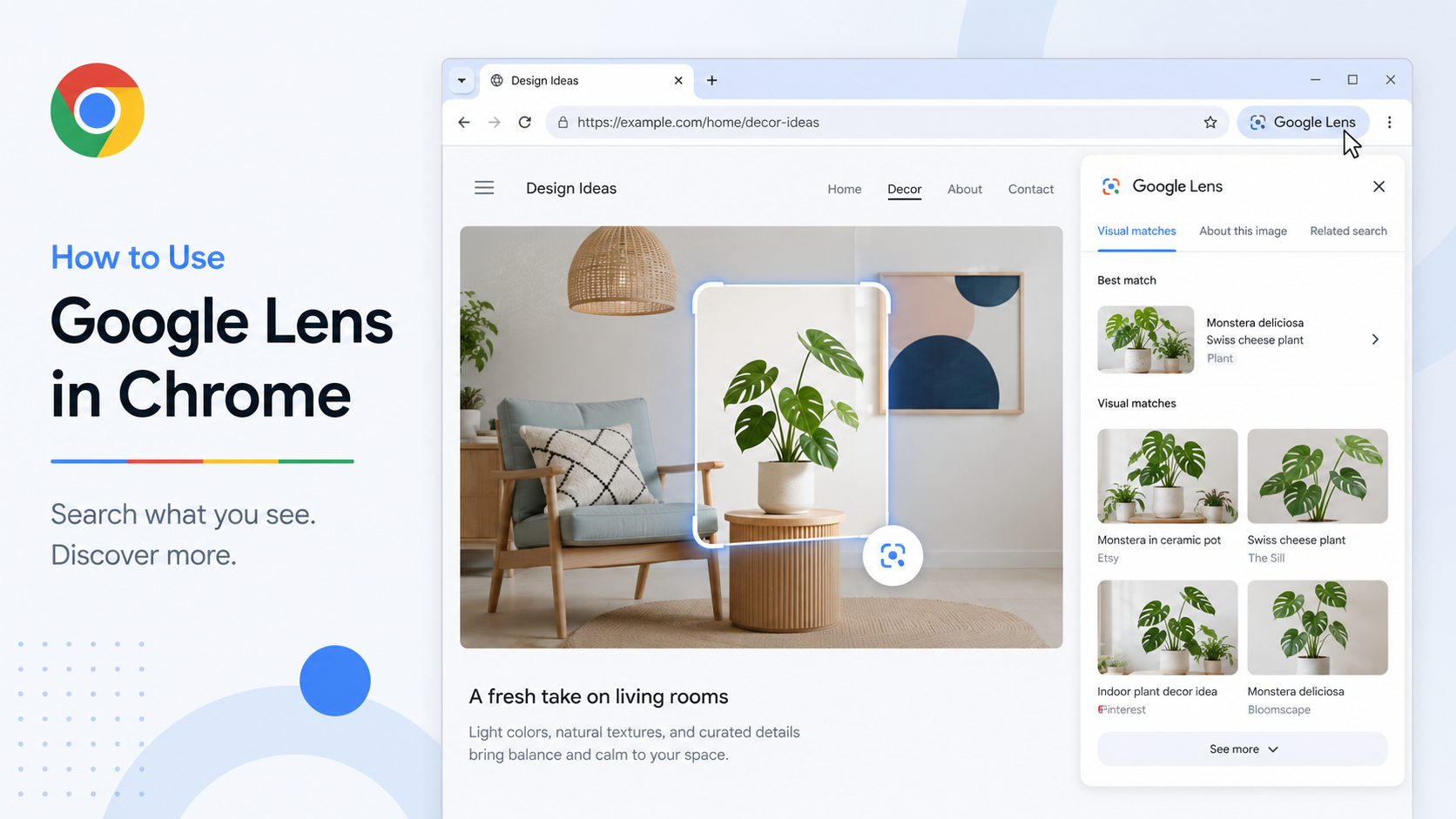
Typing a search query is easy when you know the words. But sometimes you do not. You see a chair, a jacket, a plant, a logo, a chart, a landmark or a tiny part of an image, and the whole problem is that you do not know what to call it.
That is where Google Lens in Chrome is useful. Chrome Help says you can search anything you find with Google Lens in Chrome. On desktop, open a webpage, use the Chrome menu and choose "Search this tab with Google Lens," or right-click the page and choose the Lens option. You can then select an image or drag over part of the page.
Think of it as visual search inside your browser. You can highlight a product photo and find similar items. You can select text inside an image. You can ask what an object is. You can look for related images or follow-up information without leaving the page.
A smart shopping workflow looks like this: open a product page, select the object with Lens, compare visual matches, then return to the original page and check price, seller, warranty and shipping. Lens can help you find "what else looks like this," but it should not replace basic buyer judgment.
For learning, Lens is handy with diagrams and screenshots. If an article contains a chart, an interface screenshot or a picture of a tool, select that part and use Lens as a starting point. In Chrome's Lens side panel, follow-up questions may lead into a broader AI Mode-style exploration, depending on availability.
Be careful with sensitive pages. Chrome Help notes that when you use Lens on webpage content, page-related data such as a screenshot may be sent to Google for the query. Do not use it on pages containing private documents, account details, personal messages or confidential work screens unless you are comfortable with the data flow.
A few practical tips: select only the part you care about; crop tightly around the object; ask follow-up questions when the first result is too broad; and always verify important details from original sources.
Google Lens in Chrome is one of those features that feels small until you use it at the right moment. When your brain says, "I know what I'm looking at, but I don't know the name," Lens is the shortcut.