
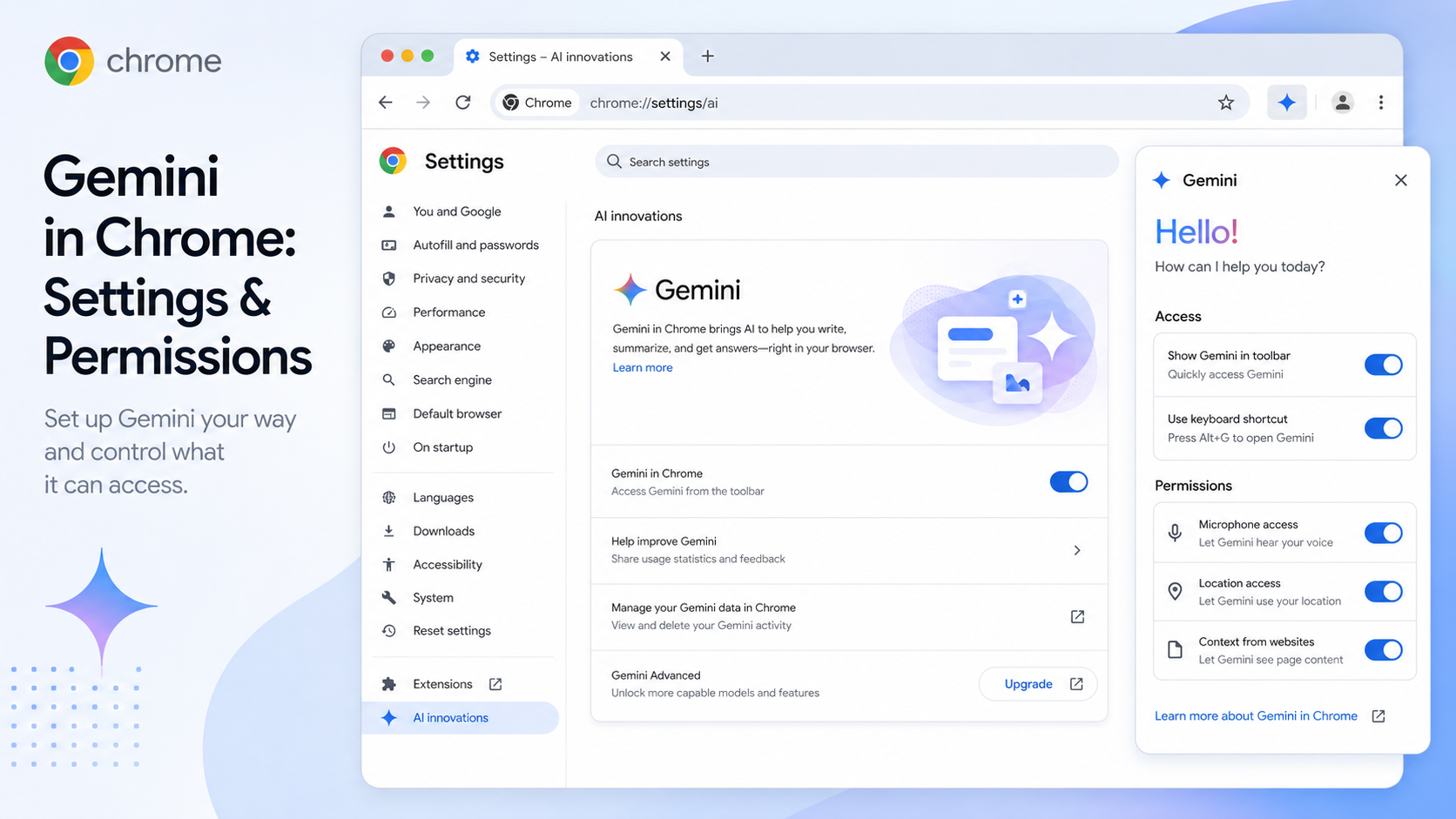
Gemini in Chrome can summarize pages, explain confusing ideas, compare information across tabs and answer questions while you browse. That is useful. It also means the assistant is sitting close to your browsing context, so it is worth spending five minutes on settings before you make it part of your daily workflow.
On desktop, open Chrome settings, go to AI innovations, then Gemini in Chrome. Depending on your version and rollout status, you may see preferences for showing Gemini at the top of the browser, placing it in the menu bar or system tray, and using keyboard shortcuts. These are convenience settings. Turn on what you will actually use and leave the rest off.
The more important area is permissions. Chrome Help lists controls such as Precise location, Microphone, Share current tab by default and Let Gemini browse for you. These are not all the same level of sensitivity. Microphone access matters if you want voice input. Precise location matters if you want locally relevant help. Sharing the current tab by default affects whether Gemini automatically uses page content when you start a new chat. Letting Gemini browse for you is more action-oriented and should be treated with extra care.
A sensible setup for most people is conservative: keep the Gemini button visible if you use it often, but do not grant microphone or precise location until you need those features. If you are using Gemini for reading articles and summarizing pages, location probably does not matter. If you are asking about nearby services, it might. If you prefer to choose context manually, turn off default tab sharing and add tabs when needed.
Gemini can work with the current tab and, on computer, Google says you can share up to 10 open tabs. That is powerful for comparison tasks. It also means you should avoid accidentally adding pages that include private information, internal work data or account details.
Good prompts are specific and grounded: "Summarize this page in five bullets and separate facts from assumptions." "Compare these two tabs and list only differences supported by the pages." "Explain this term in plain English without adding outside claims." Avoid vague requests when accuracy matters.
If Gemini in Chrome is missing, it may simply not be available to your account, region, device, language or managed profile yet. Chrome Help recommends signing in, updating Chrome, checking language support and restarting the browser when the feature should be available.
The main idea is simple: Gemini can be very helpful, but do not give it every permission by default. Start small, add context deliberately, and keep checking the original page.