
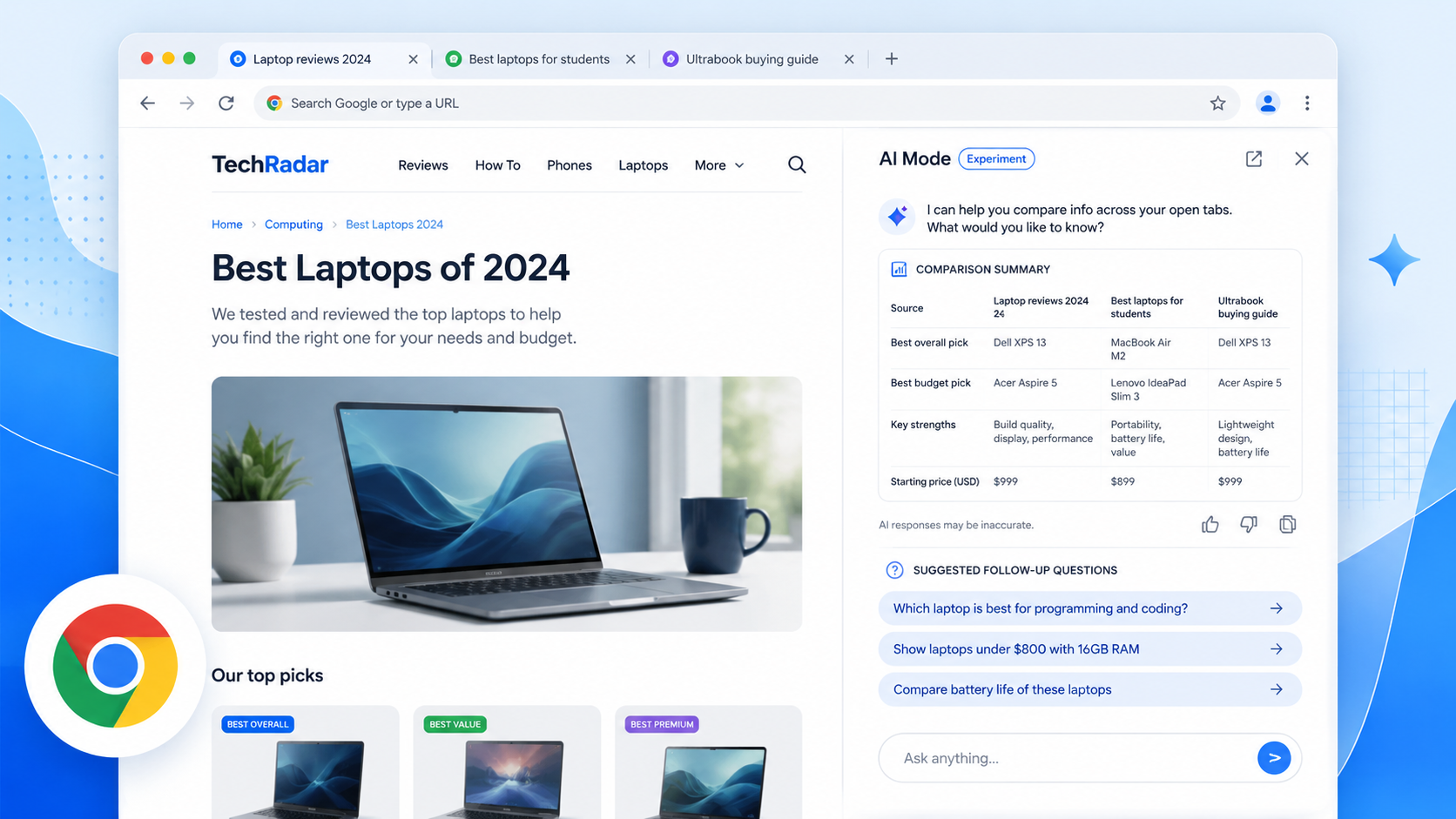
Traditional search often makes you bounce around. You search, open a result, go back, open another result, copy a line, open a new tab, lose the first tab, and eventually forget what you were trying to compare. AI Mode in Chrome is meant to make that loop smoother.
Google describes AI Mode in Chrome as a way to ask more detailed questions and explore the web without losing your place. On supported desktop setups, you can start from a new tab page, select AI Mode near the search box, and ask a question that is more conversational than a normal keyword search. When you open a result, AI Mode can stay beside the page, which lets you keep asking follow-up questions while reading.
The feature becomes more useful when you add context. Chrome Help says AI Mode can work with recent tabs, uploaded images, files and tools such as Canvas, Create Images and Deep Search, depending on availability. That means you can ask about what you already have open instead of pretending every search begins from zero.
Here is a good example. You are researching modern home office chairs. Open a few pages, then ask AI Mode to compare comfort claims, price range, return policy and anything that sounds like marketing fluff. Open one result beside AI Mode, read the page, then ask a follow-up: "Which detail should I verify before buying?" This turns AI Mode into a research companion, not a replacement for the original sites.
For learning, use it differently. Ask a broad question, open a source, then ask: "Explain this part in simpler language," or "What are the two ideas I should remember from this page?" For travel planning, add hotel tabs or PDF files and ask for a practical comparison. For work research, use it to collect differences between vendor pages, then check every key claim manually.
Privacy matters here. Chrome Help notes that AI Mode is not available to everyone yet, is rolling out gradually, and requires you to be signed in and not browsing in Incognito mode. When you add tabs or files as context, be aware of what you are sharing. Do not add private documents unless you are comfortable using them in the AI session.
The safest rule is this: let AI Mode speed up exploration, but let original sources make the final call. It is excellent for "help me understand" and "help me compare." It should not be the only thing you rely on before spending money, giving personal information or making high-stakes decisions.