
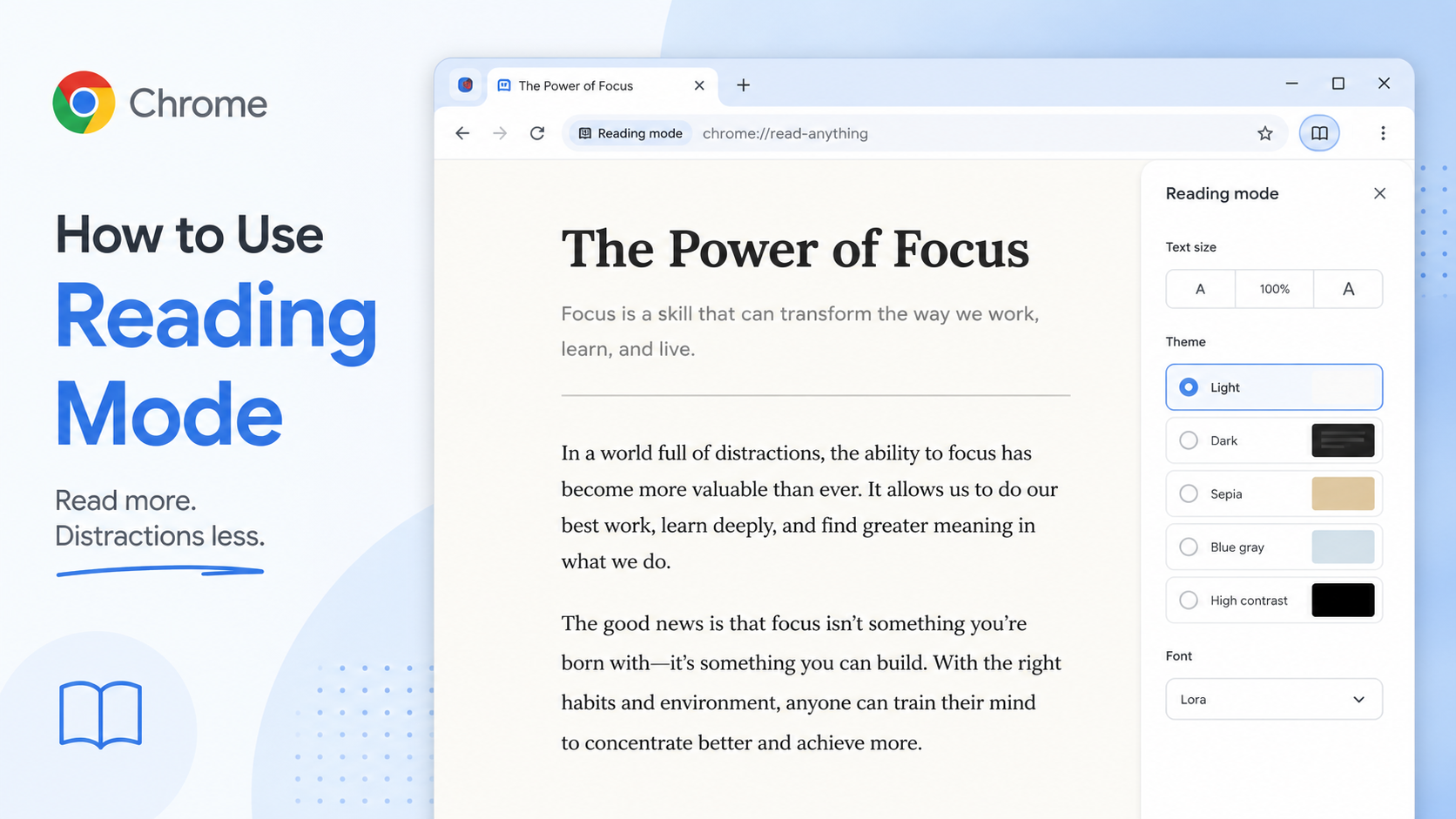
Some articles are not hard because the writing is difficult. They are hard because the page is noisy. There are floating boxes, sticky menus, recommendation panels, video blocks, newsletter pop-ups, comment widgets and a dozen little things asking for your attention before you have even reached the second paragraph.
Chrome's Reading Mode is a neat escape hatch. It strips the page down to the content you actually came for, then gives you controls for how that content should look. On supported desktop versions, you can open it from the page context menu or the Reading Mode control in Chrome. The page stays in Chrome, but the reading experience becomes calmer.
Once you are in Reading Mode, play with the controls. Increase the font size if the original article feels cramped. Switch fonts if the default style makes long reading tiring. Try a darker theme at night. Adjust spacing when paragraphs feel too dense. On desktop, Chrome also supports read-aloud style controls for listening to text, which is handy when you are tired of staring at the screen but still want to absorb the article.
This feature works best on article-like pages: news, essays, tutorials, long blog posts, policy pages and documentation. It is less useful for dashboards, shopping grids, interactive maps, app-like pages or pages where the main content is not clearly structured. If a site is mostly buttons, filters and embedded widgets, Reading Mode may not have enough clean text to work with.
A practical trick: use Reading Mode after opening several source tabs. For example, when researching a topic, keep your source pages open normally, then switch one article at a time into Reading Mode while you read. This gives you a quieter view without breaking your browsing session. If you are writing notes, the cleaner layout also makes it easier to quote ideas accurately, though you should still return to the original page for important details.
Reading Mode is also useful for students, writers, researchers and anyone who reads in a second language. Less clutter means fewer distractions. Larger text means less eye strain. Read-aloud gives you another way to process the same material.
Do not expect Reading Mode to fix every badly designed page. Think of it as a focus tool, not a magic button. When it works, it turns the web down from "crowded billboard" to "comfortable article." That alone can make Chrome feel much better for serious reading.