
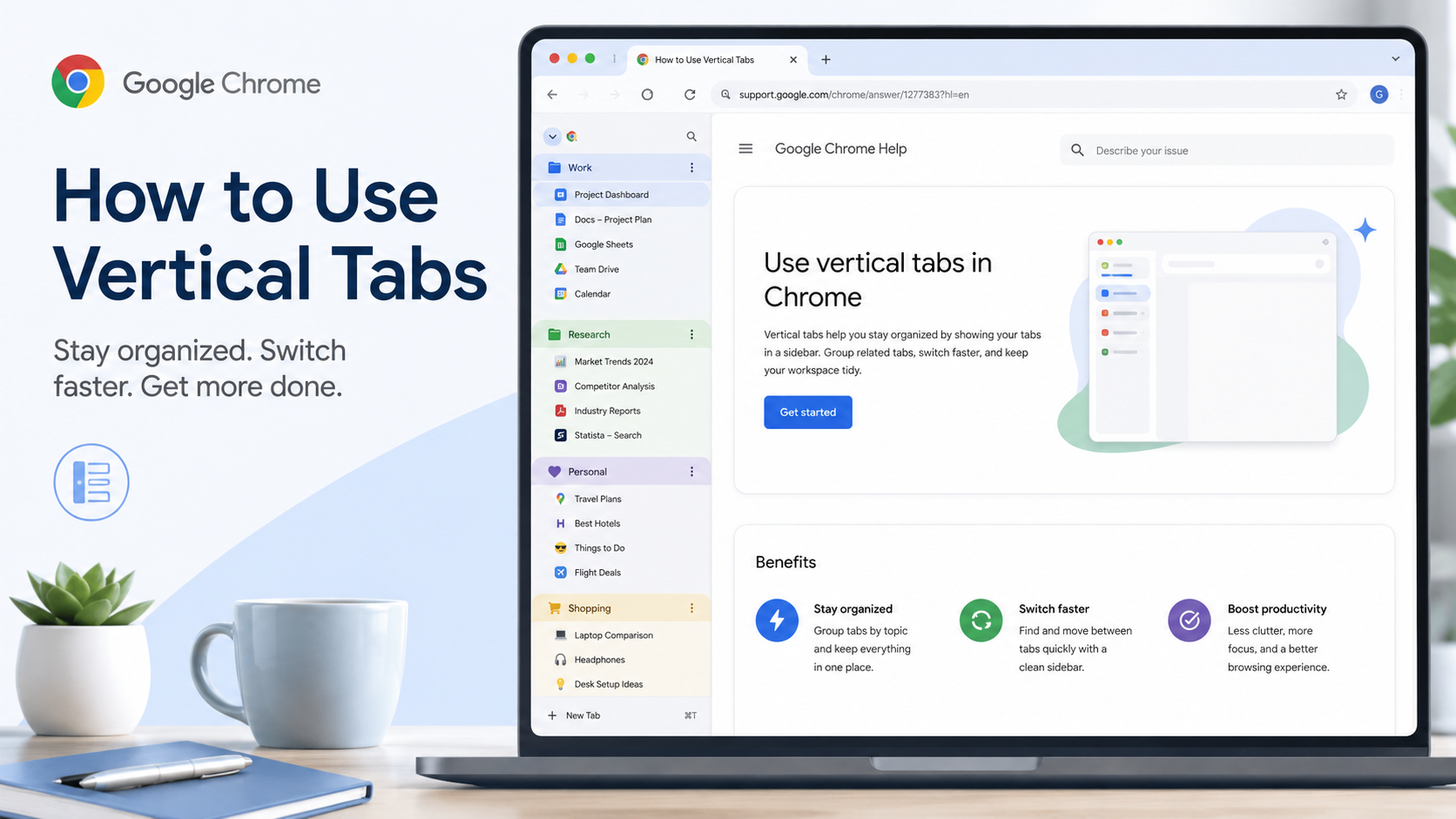
There is a familiar moment in every long browsing session: your tab bar turns into a row of tiny icons, every page title disappears, and you start clicking randomly just to find the one article or dashboard you were using five minutes ago. Chrome's vertical tabs feature is built for exactly that situation.
Instead of keeping tabs squeezed across the top of the browser, vertical tabs move them into a sidebar. That sounds small, but it changes the whole rhythm of browsing. Page titles are easier to read, tab groups are easier to spot, and a browser window with fifteen or twenty tabs suddenly feels less chaotic.
To try it, open Chrome on your computer, right-click the tab strip, and choose "Show tabs vertically." You can switch back the same way if you prefer the classic layout. On supported versions, you can also find tab position controls under Settings > Appearance. If the option is missing, update Chrome first; Google rolls features out gradually, so not every machine receives the same interface on the same day.
The best way to use vertical tabs is not to treat them as a cosmetic change. Treat them like a small project manager. Create groups such as "Research," "Shopping," "Work," or "To read," give the groups colors, then collapse anything you are not actively using. On a wide monitor, the sidebar usually costs less usable space than the top tab strip, and the payoff is that you stop hunting for pages by favicon.
Vertical tabs are especially useful when you are comparing information: laptops, flights, hotels, software documentation, competitor pages, or long research sources. If you open a search result in several new tabs, you can quickly scan the sidebar and jump between them without losing the titles. For people who work with many browser-based tools, it also helps separate personal tabs from work tabs without opening a second browser window.
One small habit makes this feature much better: close tabs when their job is done. Vertical tabs make it easier to see what is open, but they do not magically organize everything for you. Use them together with tab groups and Chrome's tab search, and the browser starts to feel less like a junk drawer and more like a tidy workspace.
The feature does not change how websites load, how your account works, or how Chrome stores data. It only changes tab layout. That makes it safe to test for a day. If you like seeing more page titles at a glance, keep it. If you prefer the old horizontal row, switch back.