
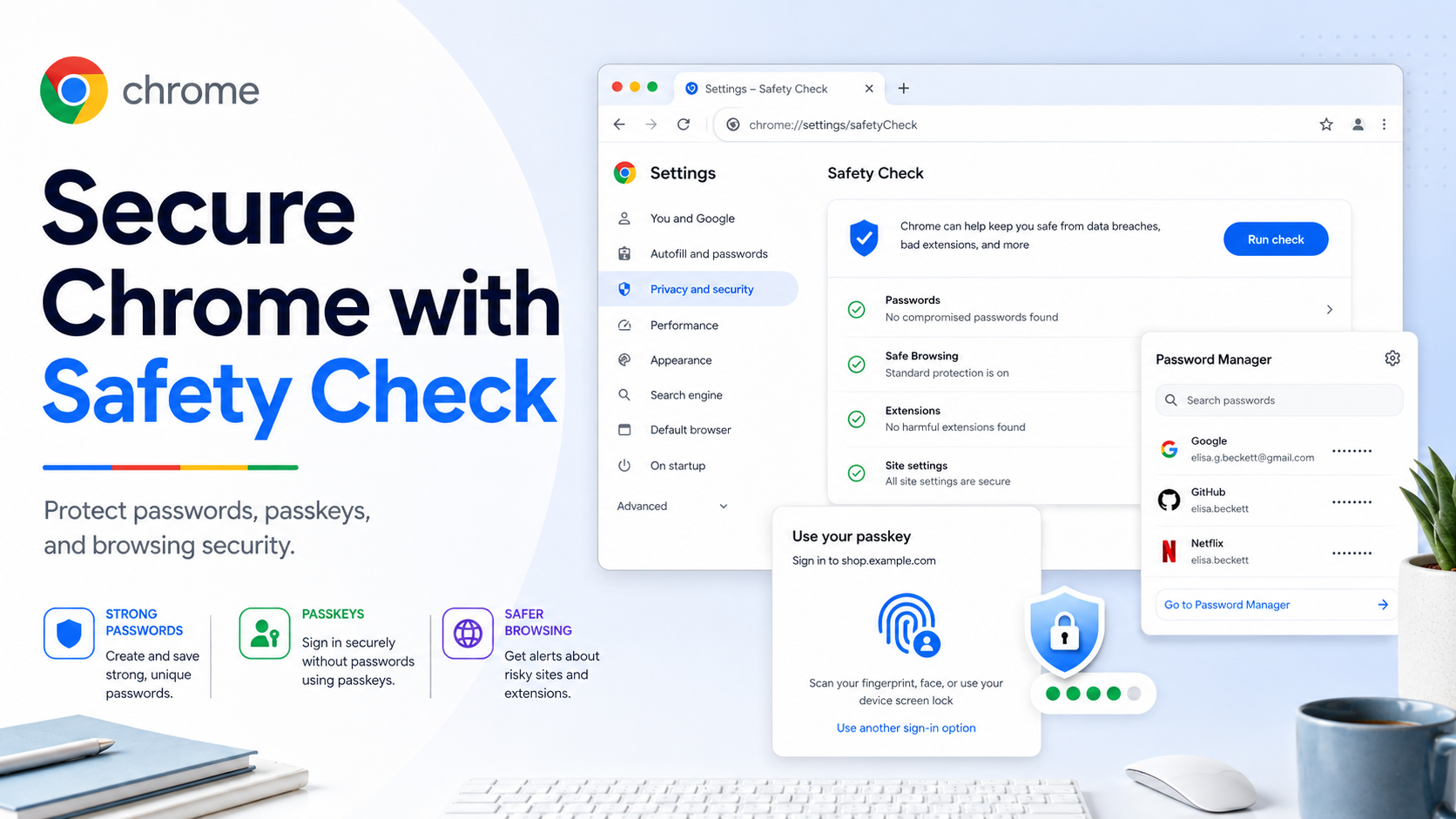
Chrome security is not just one setting. A safer browser setup combines automatic updates, Safe Browsing, Safety Check, strong saved passwords, and passkeys where supported. The goal is to reduce phishing risk, avoid compromised credentials, and make sure your browser is current.
Start with Safety Check:
Safety Check reviews important security areas such as compromised, reused, or weak passwords, Safe Browsing status, available Chrome updates, unwanted notifications, unused site permissions, and abusive notifications. On Android, Chrome runs Safety Check automatically, and you can review it manually in Settings > Safety check.
Basic Safety Check workflow:
1. Open Chrome.
2. Go to Settings.
3. Open Safety Check or Privacy and security, depending on your device.
4. Review each warning.
5. Follow Chrome's recommended action.
Turn on stronger browsing protections:
Safe Browsing warns about malware, phishing, risky extensions, and unsafe sites. For users who handle sensitive accounts, Enhanced Protection may be worth considering. Also turn on "Always use secure connections" where available so Chrome tries to use HTTPS and warns before loading sites that do not support it.
Use Google Password Manager:
Chrome can save passwords to your Google Account when you are signed in, making them available across devices. If you are not signed in, passwords can be stored locally on the device. Saved passwords are useful, but you should still avoid reusing the same password on multiple sites.
Password tips:
- Use unique passwords for every important account.
- Let Chrome suggest strong passwords when creating new accounts.
- Review warnings for compromised or weak passwords.
- Change passwords immediately if Chrome warns that one was exposed.
- Do not save passwords on shared or untrusted devices.
Use passkeys when available:
Passkeys let you sign in without typing a reusable password. They are usually confirmed with your device PIN, password, fingerprint, face authentication, or Google Password Manager PIN. Google Password Manager can store passkeys in your Google Account on eligible platforms, making them available on signed-in Chrome and Android devices.
How to create a passkey:
1. Visit a website that supports passkeys.
2. Sign in or open the account security settings.
3. Choose to create a passkey when prompted.
4. Confirm with your device authentication or Google Password Manager PIN.
5. The next time you sign in, select the passkey option.
Best security routine:
Once a month, run Safety Check, update Chrome, review saved passwords, remove permissions from sites you no longer use, and delete extensions you do not trust. This routine takes only a few minutes but can prevent many common browser problems.
Bottom line:
A secure Chrome setup is practical, not complicated. Keep Chrome updated, pay attention to Safety Check, use strong unique passwords, switch to passkeys when possible, and avoid granting long-term permissions to sites that do not need them.