
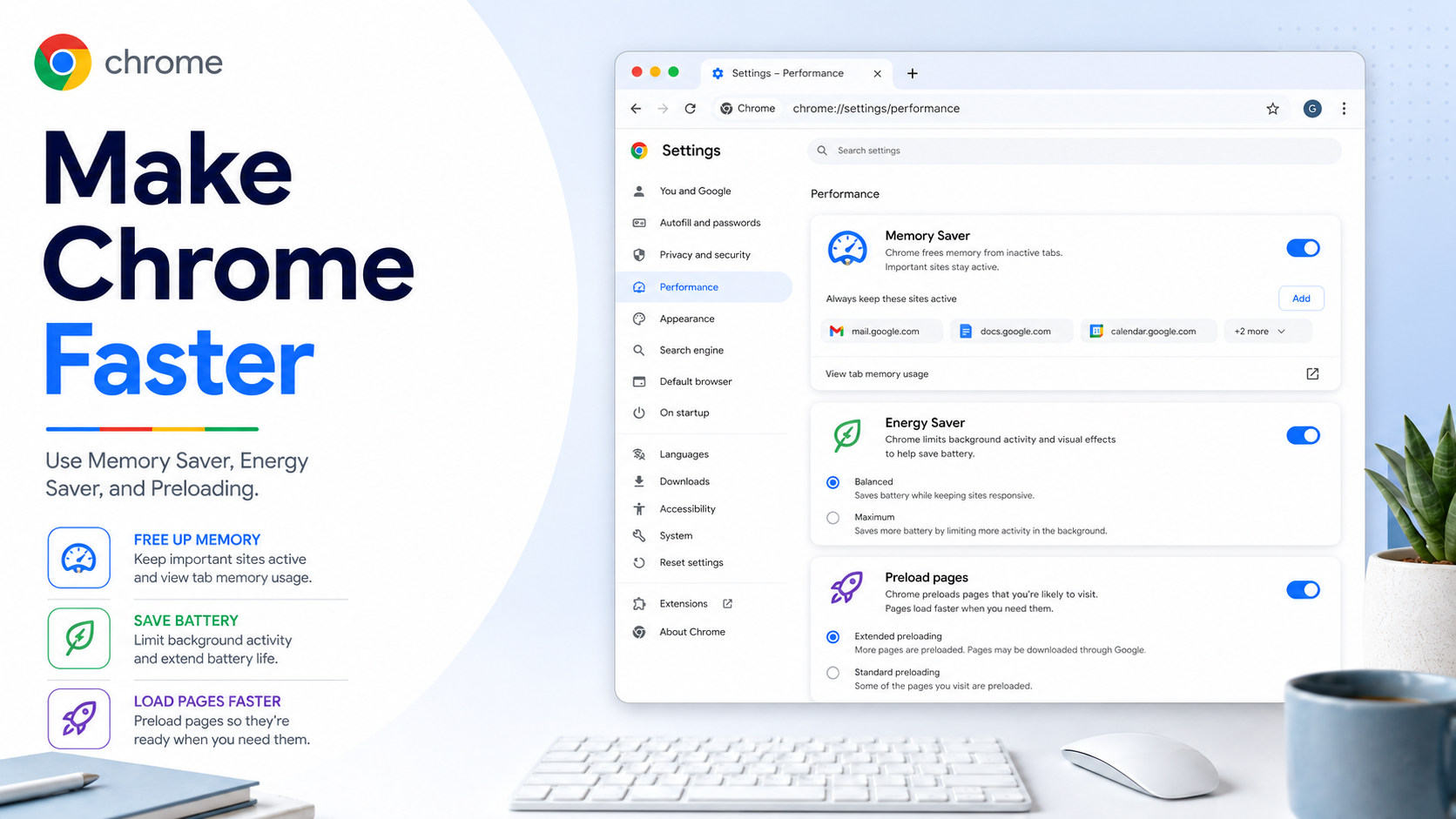
Chrome includes several performance controls that can help your browser feel lighter, especially if you keep many tabs open or use a laptop on battery. The most useful settings are Memory Saver, Energy Saver, tab memory usage, and page preloading.
Turn on Memory Saver:
1. Open Chrome on your computer.
2. Click the three-dot menu in the top-right corner.
3. Select Settings.
4. Open Performance.
5. Turn Memory Saver on or off.
6. Choose the tab deactivation level that fits your workflow.
What Memory Saver does:
Memory Saver frees memory from inactive tabs. When you return to an inactive tab, Chrome reloads it. This can help active tabs run more smoothly, especially video, gaming, web apps, and heavy pages.
When not to deactivate a tab:
Some tabs should stay active. Chrome Help notes that certain activities can prevent tab deactivation, including active audio or video, calls, screen sharing, page notifications, active downloads, and partially filled forms. You can also add important sites to "Always keep these sites active."
Keep important sites active:
1. Go to Settings > Performance.
2. Find "Always keep these sites active."
3. Select Add.
4. Add current sites or enter the site manually.
Show memory usage on tab hover:
If you want to see how much memory a tab uses, go to Appearance settings and enable memory usage on tab hover preview cards where available. This helps you spot heavy pages before blaming Chrome as a whole.
Use Energy Saver:
1. Open Settings > Performance.
2. Turn Energy Saver on or off.
3. Choose the battery behavior you prefer.
Use Preload pages carefully:
1. Open Settings > Performance.
2. Turn Preload pages on or off.
3. Choose Standard preloading or Extended preloading.
Preloading can make future pages open faster because Chrome loads some likely next pages in advance. Standard preloading is a balanced option. Extended preloading may feel faster but can use more data and resources.
Simple performance checklist:
- Turn on Memory Saver.
- Keep work apps active if they should not reload.
- Disable extensions you do not use.
- Close duplicate tabs.
- Restart Chrome after major updates.
- Use Chrome Task Manager if one tab feels unusually heavy.
- Avoid keeping dozens of auto-refreshing dashboards open.
Bottom line:
Chrome performance is not only about closing tabs. With Memory Saver, Energy Saver, site exceptions, and preloading choices, you can tune Chrome for speed, battery life, or reliability depending on how you work.