
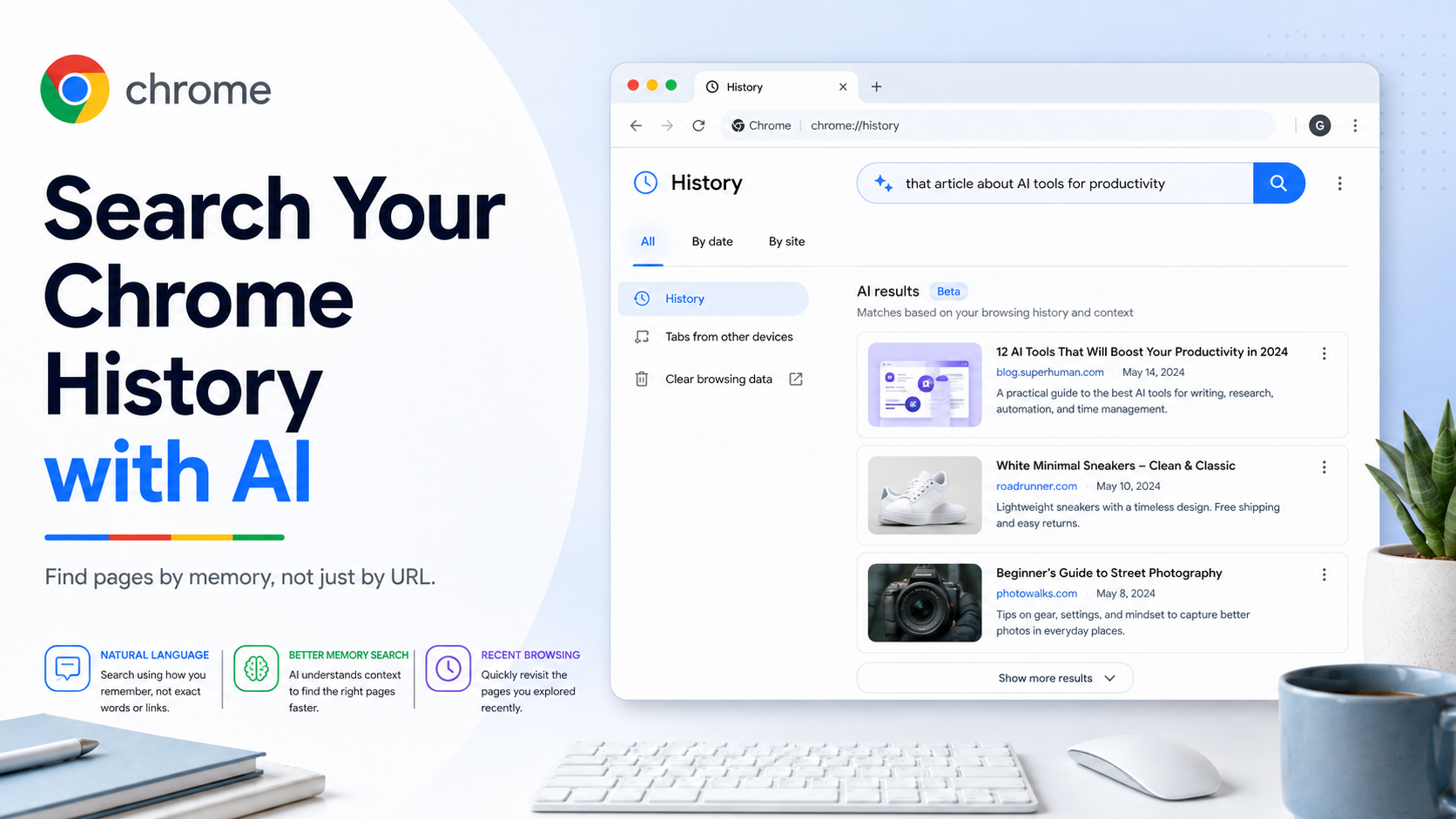
Sometimes you remember what a page was about but not the exact title, URL, or search query that led you there. AI-powered history search in Chrome is designed for that problem. Instead of scanning a long history list manually, you can describe what you are trying to find in natural language.
How to turn AI-powered history search on or off:
1. Open Chrome on your computer.
2. Click the three-dot menu in the top-right corner.
3. Go to Settings.
4. Open AI Innovations.
5. Select "History search, powered by AI."
6. Turn the feature on or off.
How to search your history:
1. Open Chrome on your computer.
2. Click the three-dot menu.
3. Go to History > History.
4. Enter a specific question or phrase.
5. Use time filters such as Yesterday, Last 7 days, or Last 30 days when available.
Better search examples:
- "article about setting up passkeys on laptop"
- "recipe page with chickpeas and lemon"
- "hotel in Kyoto with breakfast and free cancellation"
- "documentation about CSS container queries"
- "shopping page for blue wireless keyboard"
- "tutorial about using Chrome reading mode"
Why detailed searches work better:
AI-powered history search benefits from context. A one-word search like "hotel" may be too broad. A phrase like "hotel near Kyoto Station with breakfast" gives Chrome more clues and helps it surface a better match.
Important detail:
Google's Help Center notes that AI-powered history search may use the content present when the page was browsed. That means the result can reflect what you saw at the time, even if the live website later changed.
Privacy and control:
You can turn the feature off at any time in Settings. You should also continue using normal history controls: delete specific history items, clear browsing data, or use Incognito mode for browsing you do not want saved in Chrome history.
Troubleshooting:
If you do not see the feature, update Chrome and check whether AI Innovations is available for your account and region. Work or school profiles may have administrator restrictions. The feature may also roll out gradually.
Bottom line:
AI-powered history search is useful for messy research sessions. It helps you search by memory instead of exact URL, making Chrome history feel more like a searchable knowledge trail than a simple chronological list.