
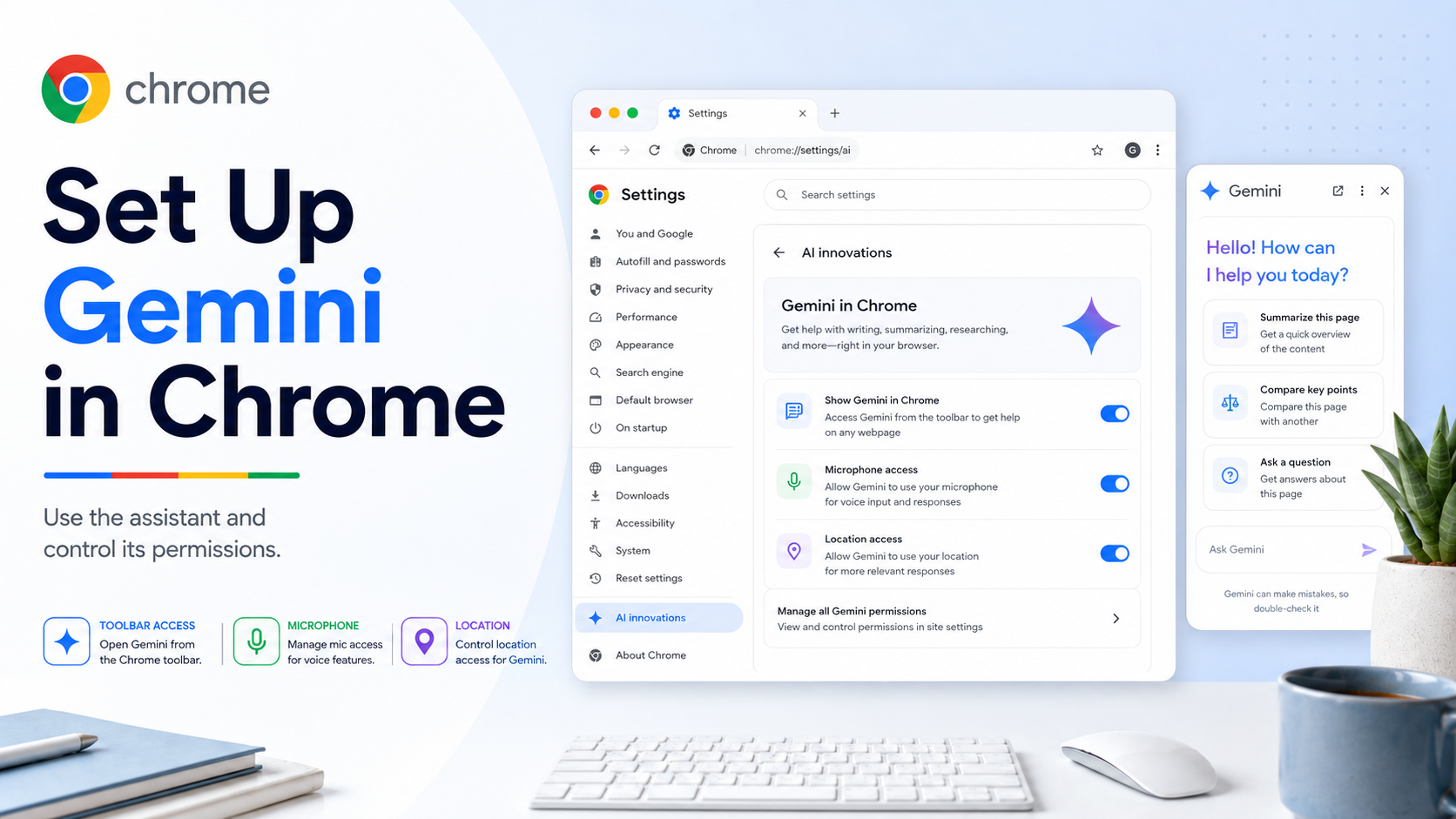
Gemini in Chrome is built to help you understand pages, compare information, and work with browsing context. It can be useful when a page is long, technical, or spread across several tabs. But because it is an assistant inside the browser, it is worth knowing where its settings are and how to control what it can access.
How to find Gemini in Chrome settings:
1. Open Chrome on your computer.
2. Click the three-dot menu in the top-right corner.
3. Select Settings.
4. In the Settings menu, open AI innovations.
5. Select Gemini in Chrome.
6. If the menu is hidden, open the side menu first.
Preferences you may see:
- Show Gemini at the top of the browser.
- Enable or disable Gemini-related entry points.
- Manage whether Gemini appears in the toolbar or browser interface.
Permissions you may see:
- Precise location.
- Microphone.
If you use voice input, microphone permission matters. If you ask for local recommendations, map-related help, or location-aware answers, precise location may matter. If you do not need these features, keep permissions off until you need them.
What to use Gemini for:
- Summarize a long article.
- Ask for a plain-English explanation of a technical page.
- Compare information across tabs when supported.
- Draft follow-up questions before reading deeper.
- Turn a page into a checklist or action plan.
- Explain unfamiliar terms on a page.
What not to rely on without checking:
- Prices, booking availability, account balances, legal terms, medical advice, or official deadlines.
- Anything that requires exact source wording.
- Any action that sends a message, changes an account, or commits money.
Troubleshooting:
If AI innovations or Gemini in Chrome does not appear, update Chrome and check whether you are signed in. Availability can depend on language, country, account type, device, and rollout stage. Some managed work or school browsers may disable AI features through administrator policy.
Bottom line:
Gemini in Chrome can make everyday browsing more efficient, especially for reading, comparing, and understanding. The best setup is to enable the entry points you actually use, keep unnecessary permissions off, and verify important information from the original page.