
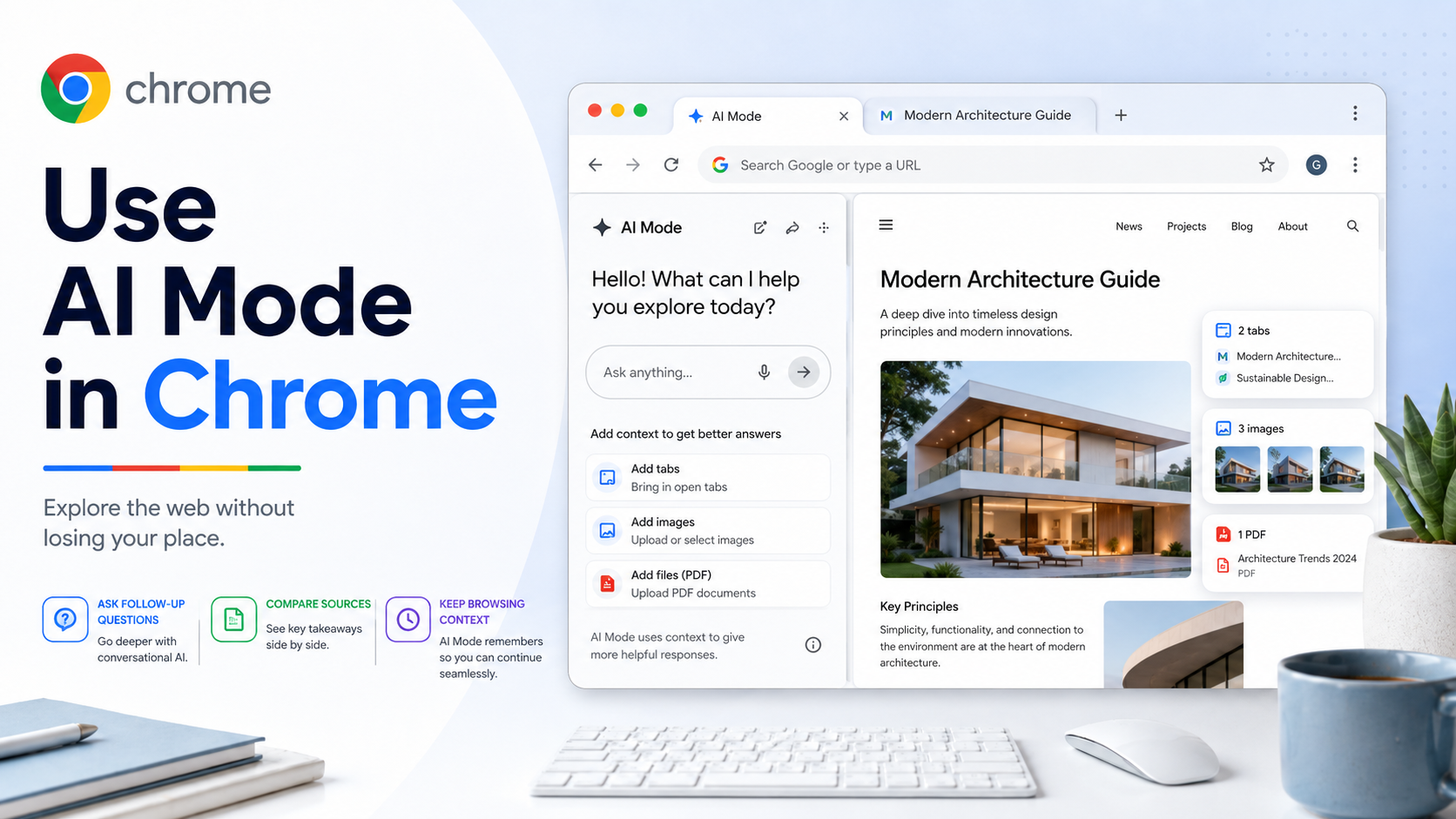
AI Mode in Chrome is designed for browsing sessions where normal search is not enough. Instead of opening many tabs, copying text, and switching between Search results and webpages, you can ask more detailed questions and keep context visible while you explore.
One newer Chrome workflow lets AI Mode and a webpage sit side by side. When you open a link from AI Mode on Chrome desktop, the page can appear next to AI Mode so you can continue asking follow-up questions without losing your original search context.
How to start:
1. Open Chrome on your computer.
2. Open a new tab page.
3. Select AI Mode near the address bar when available.
4. Enter a detailed question.
5. Open a result and continue exploring with AI Mode beside the webpage.
What to ask:
- "Compare these options and explain which one fits a small apartment."
- "Summarize the key requirements on this page."
- "What should I check before buying this product?"
- "Explain this article for a beginner."
- "Find the differences between the pages I selected."
- "Use these open tabs and suggest the next steps."
Adding more context:
Chrome can let you add recent tabs, images, and files such as PDFs to an AI Mode search. This is helpful when you are researching from several sources. For example, if you have three hotel pages open, you can add those tabs and ask AI Mode to compare location, cancellation policy, amenities, and likely hidden costs.
Privacy and accuracy tips:
Only add tabs or files you are comfortable using as context. AI answers can be useful, but they should not replace checking the original page. When the task involves money, health, law, travel bookings, or account changes, verify important facts directly from the source.
How to hide AI Mode shortcuts:
Chrome Help notes that you may be able to right-click the address bar and unselect "Always show AI Mode" if you want to hide AI Mode and "Add tabs and more" from the address bar.
Troubleshooting:
AI features may depend on region, account, language, version, eligibility, and rollout timing. If you do not see AI Mode, update Chrome, sign in, check Chrome settings, and confirm whether the feature is available for your profile.
Bottom line:
AI Mode in Chrome is best used as a browsing assistant, not as a replacement for reading. Let it compare, summarize, and explain, then use the original webpages to confirm the details that matter.