
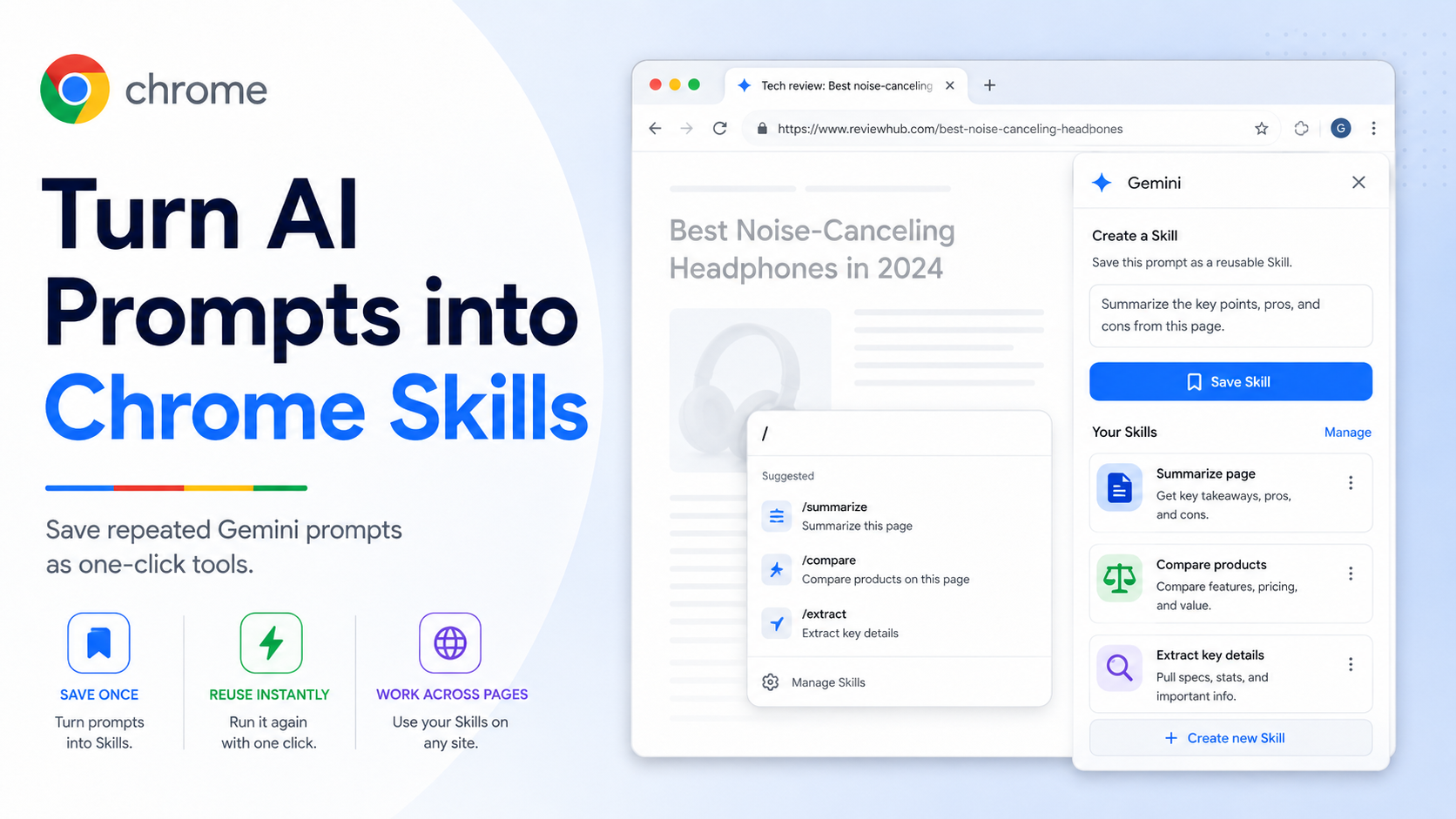
If you often ask AI the same kind of question while browsing, Chrome Skills can save time. A Skill is a reusable AI workflow inside Gemini in Chrome. Instead of typing the same long prompt again and again, you save it once and run it later with a shortcut.
This is useful for repeated tasks such as:
- Comparing product specifications across multiple tabs.
- Turning a long article into a short checklist.
- Extracting pros and cons from a webpage.
- Checking a recipe for substitutions.
- Summarizing meeting notes or PDFs.
- Reviewing a product page for hidden costs, return policies, or key details.
How the workflow works:
1. Use Gemini in Chrome while browsing.
2. Write a prompt that solves a repeated task.
3. Save that prompt as a Skill from your chat history.
4. The next time you need it, open Gemini in Chrome.
5. Type "/" or click the "+" button.
6. Choose your saved Skill.
7. Run it on the current page, or include additional selected tabs when supported.
Example Skill prompts:
- "Summarize this page in five bullet points and list anything that affects pricing."
- "Compare the selected product pages and create a table with price, warranty, battery life, and return policy."
- "Read this article and extract the main claims, supporting evidence, and possible bias."
- "Turn this tutorial into a beginner-friendly checklist."
How to make better Skills:
Start with a specific task. A vague Skill like "summarize this" is less useful than "summarize this page for a buyer deciding whether to purchase." Add your preferred output format: bullet list, table, checklist, email draft, or short explanation. Include constraints such as "keep it under 120 words" or "separate confirmed facts from assumptions."
Use Skills safely:
Chrome Skills use the safeguards of Gemini in Chrome, and some actions may require confirmation. Still, you should review AI output carefully before relying on it. Do not use a Skill to send emails, update calendars, fill forms, or act on accounts unless you are sure the result is correct and you have checked the final action.
Availability notes:
Google said Skills are rolling out on Chrome desktop for Mac, Windows, and ChromeOS, with Chrome language set to English-US. If you do not see the feature, update Chrome, check your language, confirm Gemini in Chrome is available for your account, and remember that staged rollouts can take time.
Bottom line:
Chrome Skills are a productivity shortcut for AI-assisted browsing. They turn your best repeat prompts into reusable tools, helping you work faster across pages and tabs without rebuilding the same AI instruction every time.