
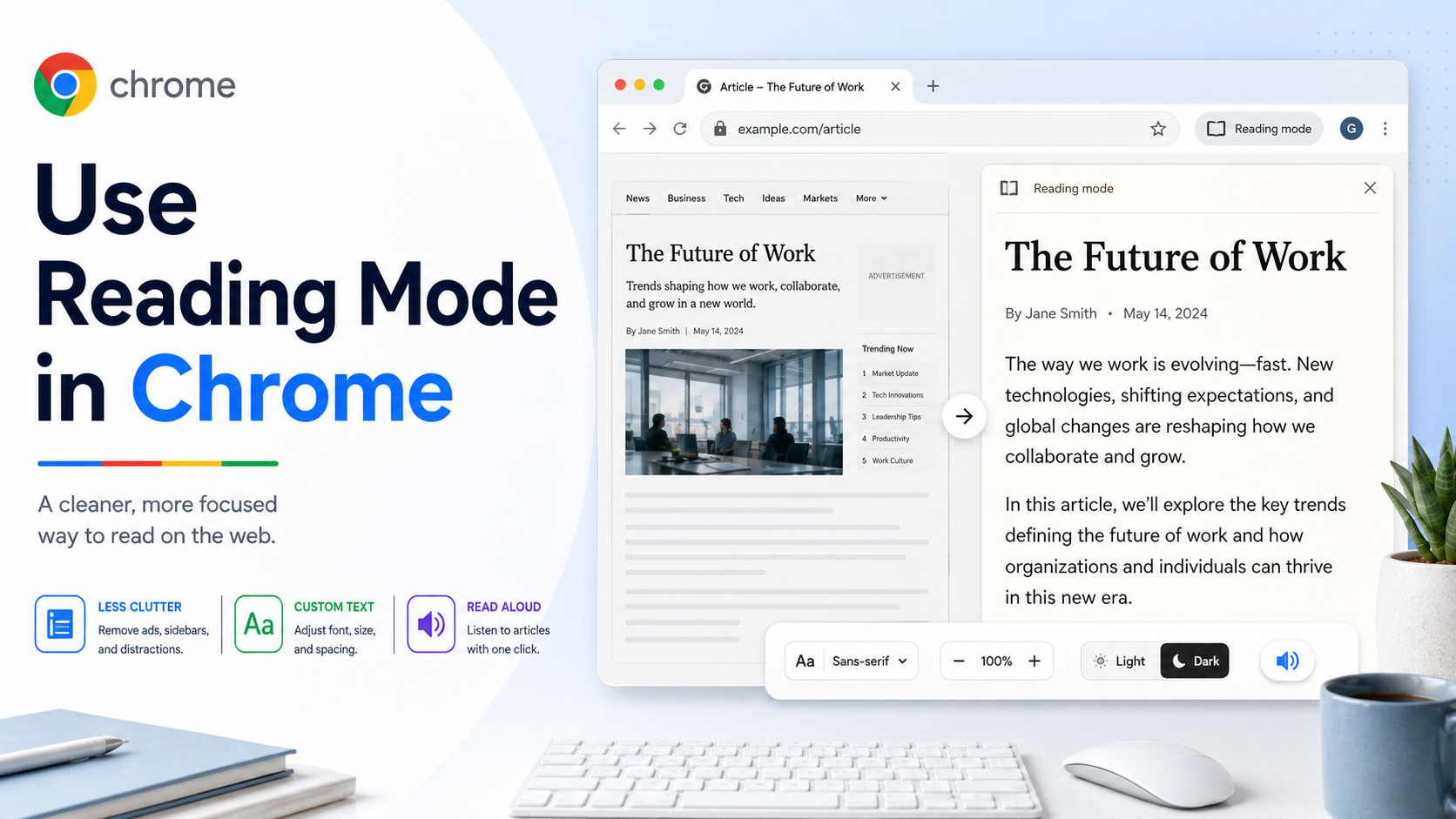
Many web pages are difficult to read because they include pop-ups, sidebars, autoplay elements, ads, navigation blocks, and unrelated recommendations. Chrome's reading mode helps turn a busy page into a cleaner reading experience. It is useful when you want to focus on the main text of an article, guide, blog post, policy page, or long reference document.
Chrome's newer full-page reading mode is designed for deep focus. Instead of forcing you to copy text into a separate app, it lets you stay inside the browser while reducing visual distractions.
How to open reading mode:
1. Open the page you want to read.
2. Right-click anywhere on the page.
3. Select "Open in reading mode."
4. Adjust the reading view to match your preference.
What you can customize:
- Typeface: choose a font style that feels easier on your eyes.
- Font size: increase text size for long sessions or small screens.
- Color theme: switch between lighter or darker reading backgrounds.
- Spacing: on desktop, adjust line and letter spacing when available.
- Audio: on desktop, Chrome can read text aloud, and you can adjust the voice and speed.
When reading mode is most useful:
- Reading long news articles without distractions.
- Reviewing documentation or how-to guides.
- Studying materials where sidebars interrupt concentration.
- Reading on a smaller laptop screen.
- Using text-to-speech to listen while you review notes.
A practical workflow:
Open your research pages first, group them in Chrome, then open one page in reading mode when you are ready to study it. If you need to compare multiple articles, keep your source pages in tabs and use reading mode only for the page you are currently reviewing. This helps you avoid losing context while still creating a calmer reading surface.
Limitations:
Reading mode works best on pages with a clear article-like structure. It may not work perfectly on interactive pages, ecommerce listings, dashboards, or websites that heavily depend on scripts and embedded modules. If the page does not convert cleanly, use zoom, print view, or a trusted reader extension only if needed.
Bottom line:
Reading mode is a quick way to make Chrome more comfortable for serious reading. It removes clutter, gives you control over text presentation, and can turn a distracting page into a focused reading session.