
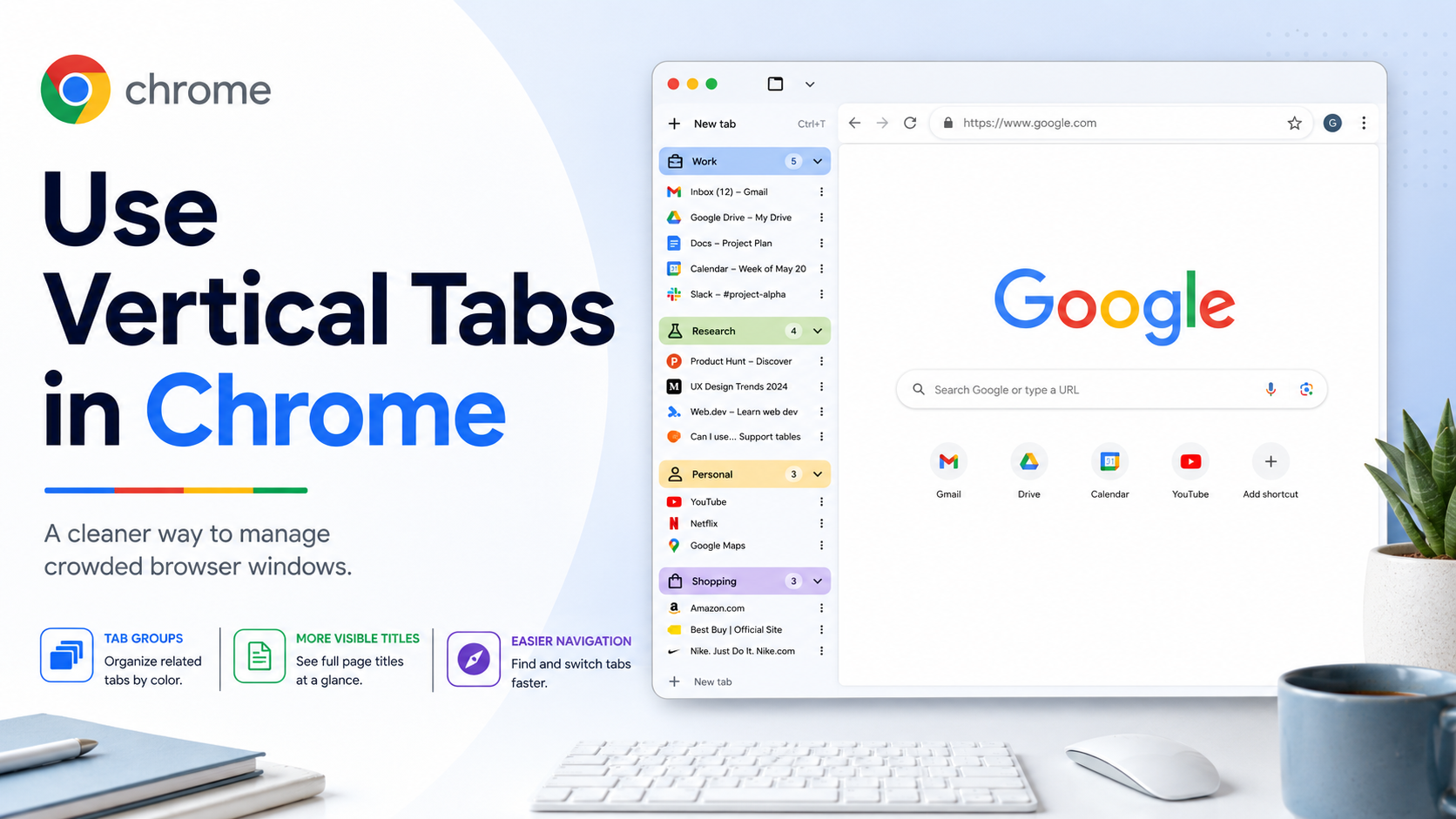
When you keep many pages open at once, the normal horizontal tab strip can become cramped. Page titles disappear, favicons start looking the same, and it becomes easy to lose the page you were using a few minutes ago. Chrome's vertical tabs feature gives you another layout: tabs move from the top of the browser to the side of the window.
This is especially useful for research, shopping comparisons, content planning, customer support, coding references, or any workflow where you keep ten or more tabs open. With tabs arranged vertically, more of each page title remains visible. You can also scroll through your tab list and resize the tab strip to fit the amount of information you want to see.
How to turn on vertical tabs:
1. Open Chrome on your computer.
2. Right-click an empty area of the tab strip, or right-click an open tab.
3. Select "Show Tabs Vertically."
4. To switch back, right-click again and choose "Show Tabs Horizontally."
You can also enable the feature through Settings:
1. Open Chrome.
2. Click the three-dot menu in the top-right corner.
3. Go to Settings > Appearance.
4. Under "Tab position," choose Vertical or Horizontal.
When vertical tabs work best:
- You open many pages from the same search topic.
- You use tab groups and want to read group names more clearly.
- You compare products, prices, hotels, articles, or technical documentation.
- You work on a widescreen monitor where side space is easier to spare than top space.
- You often forget which tab contains which page.
A simple productivity method is to combine vertical tabs with tab groups. For example, create groups named "Sources," "To Read," "Competitors," and "Drafting." Put related tabs into each group, then collapse the groups you are not using. In a vertical layout, this makes Chrome feel more like a project sidebar than a pile of browser tabs.
Troubleshooting tips:
If you do not see the option, update Chrome first. Some features roll out gradually, so the menu may appear on one device before another. Also check whether your browser is managed by an organization, because administrators can sometimes control interface features.
Bottom line:
Vertical tabs are one of the simplest Chrome upgrades for heavy tab users. They reduce tab confusion, make page titles easier to scan, and pair well with tab groups, tab search, and research-heavy workflows.