
Download 79.0.3945.79 from the Chrome Stable for macOS
Download Google Chrome 79.0.3945.79 with the branch, platform, release date, and file size shown clearly on the same page.
What users usually want to know first
What changed in Chrome 79.0.3945.79
Google Chrome 79.0.3945.79 is available here as part of the macOS Stable archive. Use this release page when you want the exact version, the current package details, and quick access to the correct installer.
Maskable Icons
If you're running Android O or later, and you've installed a Progressive Web App, you've probably noticed the annoying white circle around the icon.
Thankfully, Chrome 79 now supports maskable icons for installed Progressive Web Apps.You'll need to design your icon to fit within the safe zone - essentially a circle with a diameter that's 80% of the canvas.
Then, in the web app manifest, you'll need to add a new purpose property to the icon, and set its value to maskable.
Tiger Oakes has a great post on CSS Tricks - Maskable Icons: Android Adaptive Icons for Your PWA with all of the details, and has a great tool you can use for testing your icons to make sure they'll fit.
Web XR
You can now create immersive experiences for smartphones and head-mounted displays with the WebXR Device API.
WebXR enables a whole spectrum of immersive experiences. From using augmented reality to see what a new couch might look like in your home before you buy it, to virtual reality games and 360 degree movies, and more.
To get started with the new API, read Virtual Reality Comes to the Web.
New origin trials
Origin trials provide an opportunity for us to validate experimental features and APIs, and make it possible for you to provide feedback on their usability and effectiveness in broader deployment.
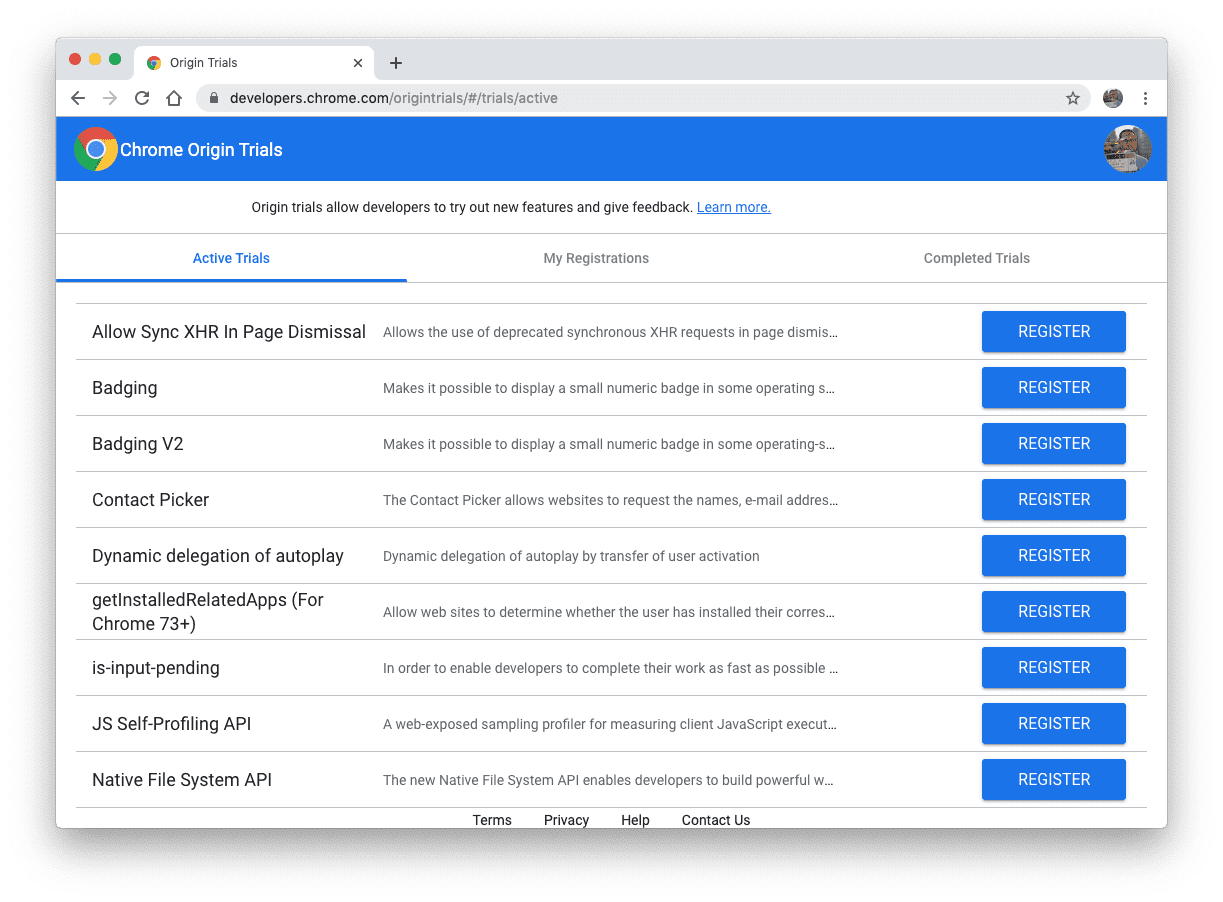
Experimental features are typically only available behind a flag, but when we offer an Origin Trial for a feature, you can register for that origin trial to enable the feature for all users on your origin.
Opting into an origin trial allows you to build demos and prototypes that your beta testing users can try for the duration of the trial without requiring them to flip any special flags in Chrome.
There's more info on origin trials in the Origin Trials Guide for Web Developers. You can see a list of active origin trials, and sign up for them on the Chrome Origin Trials page.
Wake Lock
One of my biggest pet peeves about Google Slides is that if you leave the deck open on a single slide for too long, the screensaver kicks in. Before you can continue, you need to unlock your computer. Ugh.
But, with the new Wake Lock API, a page can request a lock, and prevent the screen from dimming or the screensaver from kicking in. It's perfect for Slides, but it's also helpful for things like recipe sites - where you might want to keep the screen on while you follow the instructions.
To request a wake lock, you need to call navigator.wakeLock.request(), and save the WakeLockSentinel object that it returns.
The lock is maintained until the user navigates away from the page, or you call release on the WakeLockSentinel object you saved earlier.
More details are at web.dev/wakelock.
rendersubtree attribute
There are times when you don't want part of the DOM to render immediately. For example scrollers with a large amount of content, or tabbed UIs where only some of the content is visible at any given time.
The new rendersubtree attribute tells the browser it can skip rendering that subtree. This allows the browser to spend more time processing the rest of the page, increasing performance.
When rendersubtree is set to invisible, the element's content is not drawn or hit-tested, allowing for rendering optimizations.
Changing the rendersubtree to activatable, makes the content visible by removing the invisible attribute, and rendering the content.
Chrome Dev Summit 2019
If you missed Chrome Dev Summit, all of the talks are on our YouTube channel.
Jake also has a great Twitter thread with all the fun stuff that went on between the talks, including the newest member of our team, Surjiko.
Official source: Official Chrome update
Installation notes
After downloading the package, confirm that the branch and platform match your device before launching the installer or extracting the archive. If you only need a standard everyday browser, Stable is usually the safest choice. If you are testing new behavior, Beta, Dev, and Canary are better fits.
Related release pages
For newer or older builds in the same branch, open the category archive linked above. For different platforms, use the related desktop archives in the sidebar.
Frequently asked questions
These FAQ blocks help the page read like a complete release article instead of a download stub, which is better for trust and better for SEO.
Should I use this release or stay on Stable?
If you just want the safest everyday browsing experience, Stable is usually the right default. Preview branches are better for testing, compatibility checks, and early feature access.
Why show exact version numbers so prominently?
Because exact-version queries are common in English search behavior, especially for QA teams, enterprise users, and people trying to reproduce a bug or environment.
Why keep a full article around the download buttons?
A stronger page body gives users context and gives Google clearer signals about what the release page actually covers.
Where should older releases live?
Older versions belong in the category archive page, with this article template handling exact-version landing pages one release at a time.