
Download 87.0.4280.67 from the Chrome Stable for Linux
Download Google Chrome 87.0.4280.67 with the branch, platform, release date, and file size shown clearly on the same page.
What users usually want to know first
What changed in Chrome 87.0.4280.67
Google Chrome 87.0.4280.67 is available here as part of the Linux Stable archive. Use this release page when you want the exact version, the current package details, and quick access to the correct installer.
Chrome Dev Summit

The Chrome Dev Summit is back on December 9th and 10th with its 8th chapter. But this time, we're coming to you. We're bringing all the latest updates, lots of new content, and plenty of Chromies.
There are a ton of great talks, workshops, office hours, etc, and we'll be in the YouTube chat to answer your questions. Learn more, and find out how you can not just watch, but participate!
Camera pan, tilt, zoom
Most meeting rooms at Google have cameras with pan, tilt, and zoom capabilities, so that the camera can be pointed at the people in the room. But it's not just fancy conference cameras that support PTZ - pan, tilt, zoom - many web cams support it too.
Starting in Chrome 87, once a user has granted permission you can now control the PTZ features on a camera.
Feature detection is a little different from what you're probably used to. You'll need to call navigator.mediaDevices.getSupportedConstraints() to see if the browser supports PTZ.
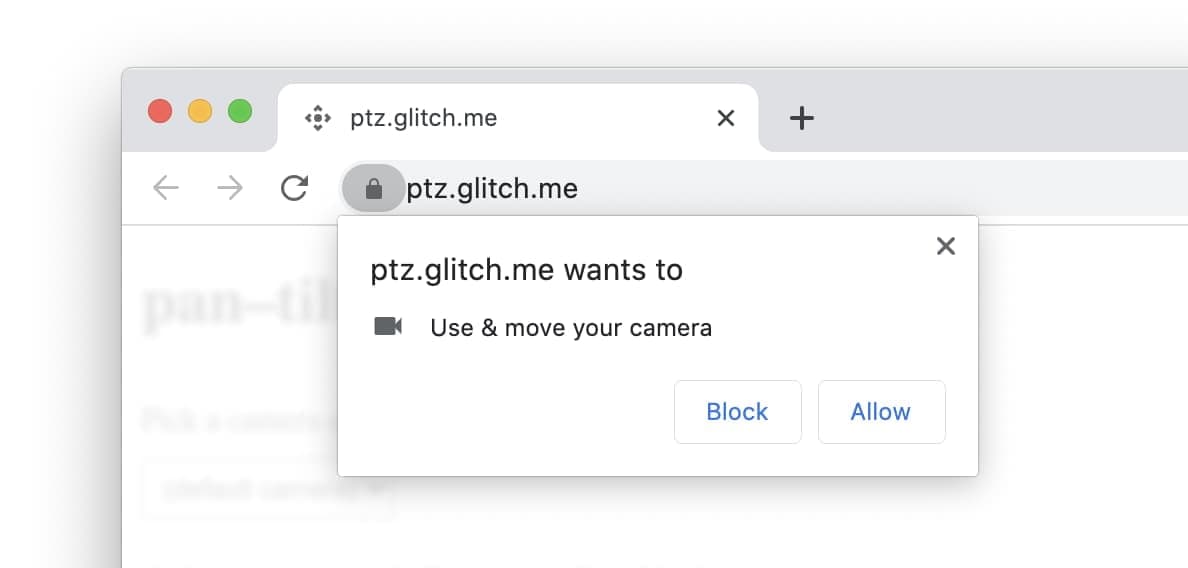
Then, like all other powerful APIs, the user will need to grant permission to the camera, but also to PTZ functionality.
To request permission for PTZ functionality, call navigator.mediaDevices.getUserMedia() with the PTZ constraints. This will prompt the user to grant both regular camera and camera with PTZ permissions.
Finally, a call to MediaStreamTrack.getSettings() will tell you what the camera supports.
Once the user has granted permission, you can then call videoTrack.applyConstraints() to adjust the pan, tilt, and zoom.
Personally, I'm really excited about PTZ, so I can hide my messy kitchen, but you'll have to check out the video to see that!
Francois has a great post Control camera pan, tilt, and zoom on web.dev with code samples, complete details the best way to request permission, and a demo, so that you can try it out, and see if your webcam supports PTZ.
Range requests and service workers
HTTP range requests, which have been available in major browsers for several years, allow servers to send requested data to the client in chunks. This is especially useful for large media files, where the user experience is improved through smoother playback, enhanced scrubbing, and better pause and resume functions.
Historically, range requests and services workers did not work well together, forcing developers to build work-arounds. Starting in Chrome 87, passing range requests through to the network from inside a service worker will "just work."
For an explanation of the issues with range requests and what's changed in Chrome 87, see Jeff's article Handling range requests in a service worker on web.dev.
Origin Trial: Font access API
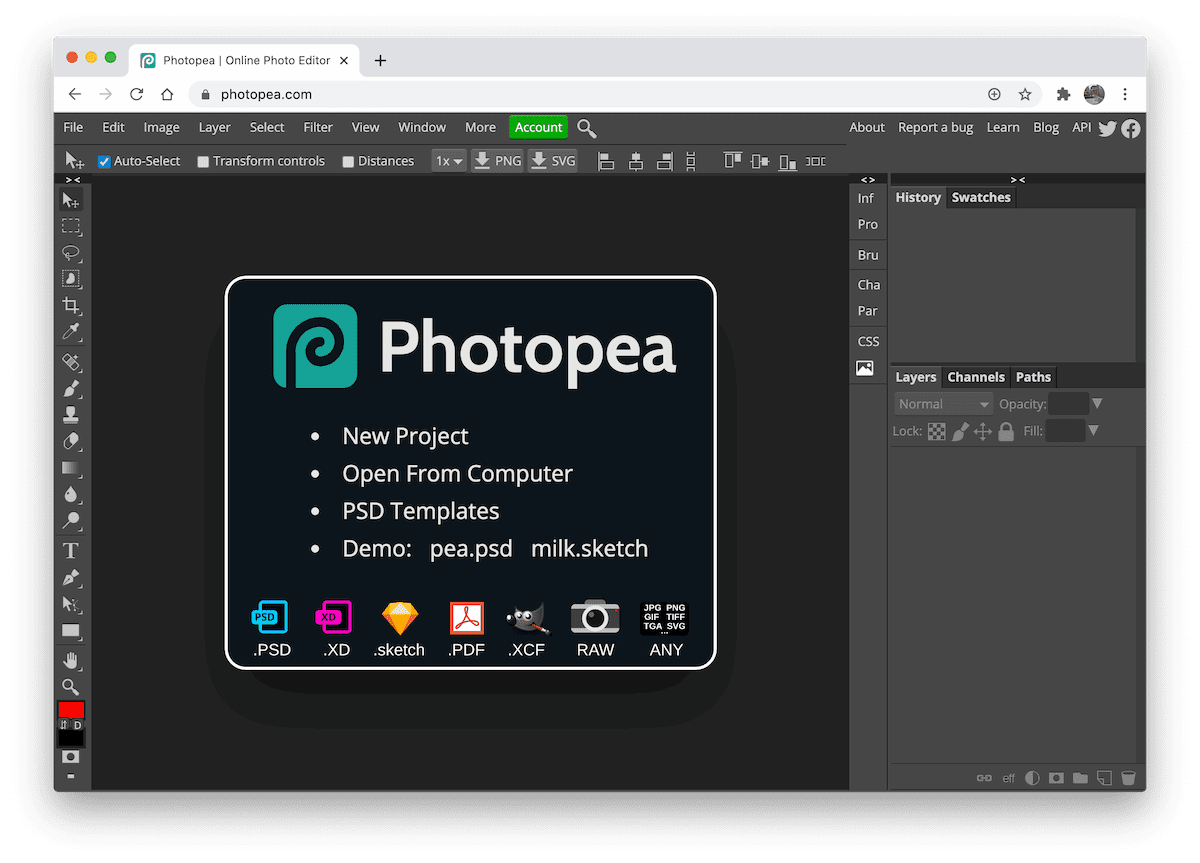
Bringing design apps like Figma, Gravit Designer, and Photopea, to the web is great, and we're seeing a lot more coming. While the web has the ability to offer a plethora of fonts, not everything is available on the web.
For many designers, there are some fonts installed on their computer that are critical to their work. For example, corporate logo fonts, or specialized fonts for CAD and other design applications.
With the font access API, which starts an origin trial in Chrome 87, a site can now enumerate the installed fonts, giving users access to all of the fonts on their system.
And sites can hook in at lower levels to get access to the font bytes, allowing them to do their own OpenType layout implementation, or perform vector filters, or transforms, on the glyph shapes.
Check out Tom's article Use advanced typography with local fonts on web.dev with all the details, and the link to the Origin Trial so you can try it yourself.
And more
- Transferable Streams -
ReadableStream,WritableStream, andTransformStreamobjects can now be passed as arguments topostMessage(). - We've implemented the most granular
flow-relativefeatures of the CSS Logical Properties and Values spec, including shorthands and offsets to make these logical properties and values a bit easier to write. For example, a singlemargin-blockproperty can replace separatemargin-block-startandmargin-block-endrules. - New
@font-facedescriptors have been added toascent-override,descent-override, andline-gap-overrideto override metrics of the font. - There are several new
text-decorationandunderlineproperties. - And there are a number of changes related to cross-origin isolation.
Official source: Official Chrome update
Installation notes
After downloading the package, confirm that the branch and platform match your device before launching the installer or extracting the archive. If you only need a standard everyday browser, Stable is usually the safest choice. If you are testing new behavior, Beta, Dev, and Canary are better fits.
Related release pages
For newer or older builds in the same branch, open the category archive linked above. For different platforms, use the related desktop archives in the sidebar.
Frequently asked questions
These FAQ blocks help the page read like a complete release article instead of a download stub, which is better for trust and better for SEO.
Should I use this release or stay on Stable?
If you just want the safest everyday browsing experience, Stable is usually the right default. Preview branches are better for testing, compatibility checks, and early feature access.
Why show exact version numbers so prominently?
Because exact-version queries are common in English search behavior, especially for QA teams, enterprise users, and people trying to reproduce a bug or environment.
Why keep a full article around the download buttons?
A stronger page body gives users context and gives Google clearer signals about what the release page actually covers.
Where should older releases live?
Older versions belong in the category archive page, with this article template handling exact-version landing pages one release at a time.