
Download 86.0.4240.111 from the Chrome Stable for Windows 32-bit
Download Google Chrome 86.0.4240.111 with the branch, platform, release date, and file size shown clearly on the same page.
What users usually want to know first
What changed in Chrome 86.0.4240.111
Google Chrome 86.0.4240.111 is available here as part of the Windows 32-bit Stable archive. Use this release page when you want the exact version, the current package details, and quick access to the correct installer.
File System Access
Today, you can use the <input type="file"> element read a file from disk. To save changes, add download to an anchor tag, it'll show the file picker, then saves the file. There's no way to write to the same file you opened. That workflow is annoying.
With the File System Access API (formerly the Native File System API), which graduated from it's origin trial, and is now available in stable, you can call showOpenFilePicker(), which shows a file picker, then returns a file handle that you can use to read the file.
To save a file to disk, you can either use that file handle that you got earlier, or call showSaveFilePicker() to get a new file handle.
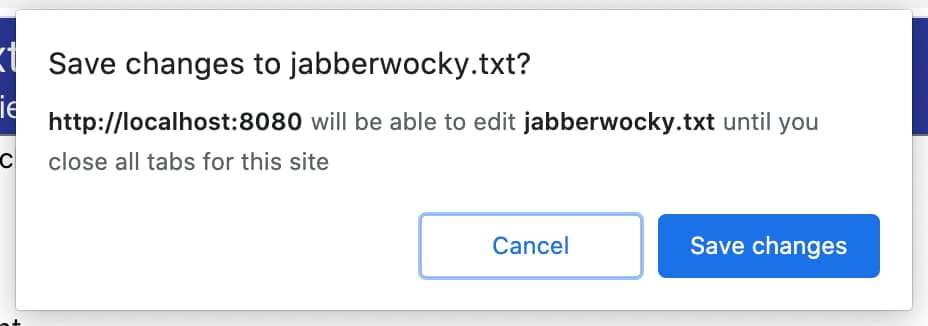
Before writing, Chrome will check if the user has granted write permission, if write permission hasn't been granted, Chrome will prompt the user first.
Calling showDirectoryPicker() will open a directory, allowing you to get a list of files, or create new files in that directory. Perfect for things like IDEs, or media players that interact with lots of files. Of course, before you can write anything, the user must grant write permission.
There's a lot more to the API, so check out the File System Access article on web.dev.
Origin Trial: WebHID

Human interface devices, commonly referred to as HID, takes input from, or provides output to... humans. There's a long tail of human interface devices that are too new, too old, or too uncommon to be accessible by the systems' device drivers.
The WebHID API, now available as an origin trial, solves this by providing a way to access these devices in JavaScript. With WebHID, web based games can take full advantage of gamepads, including all of the buttons, joysticks, sensors, triggers, LEDs, rumble packs, and more.
Web based video chat apps can use the telephony buttons on specialized speakers, to start or end calls, mute the audio, and more.
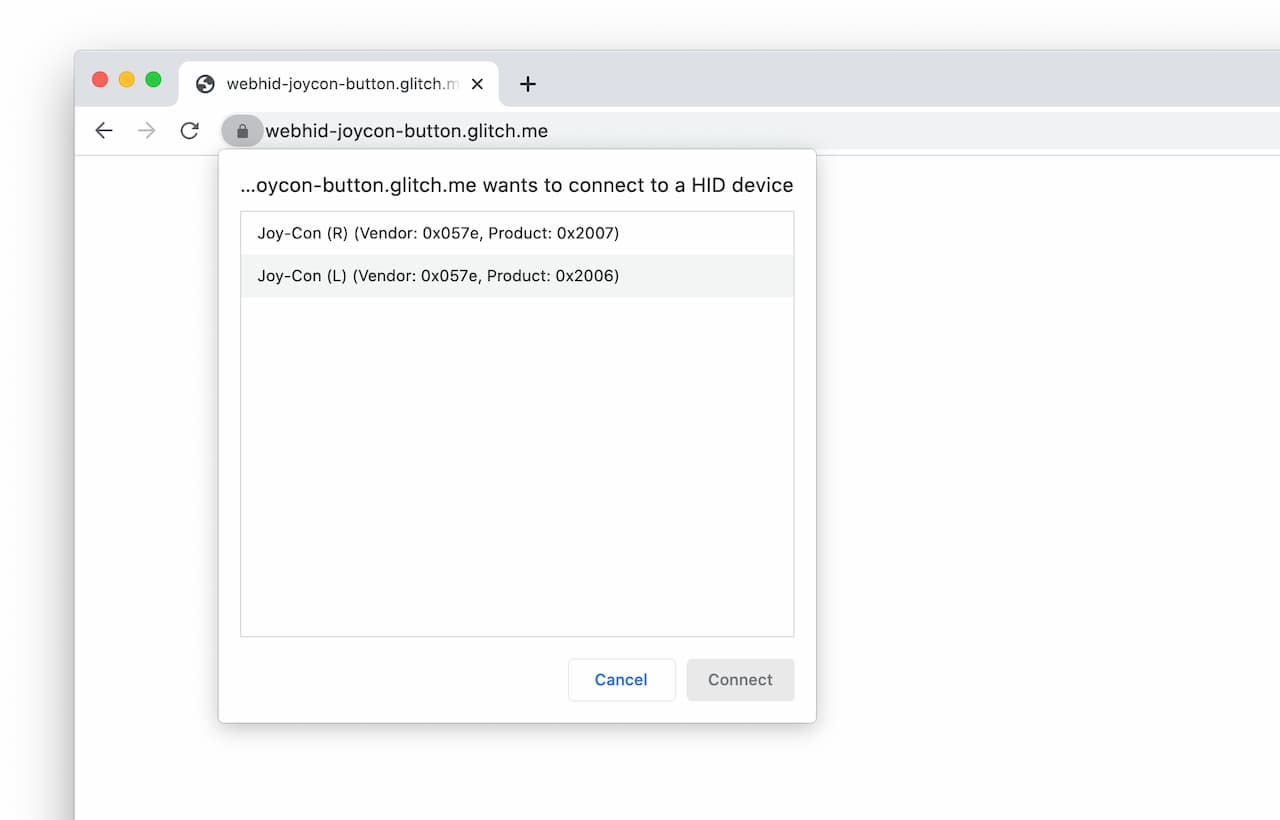
Of course, powerful APIs like this, can only interact with devices when the user explicitly chooses to allow it.
Check out Connecting to uncommon HID devices for more details, examples, how you can get started, and a cool demo.
Origin Trial: Multi-Screen Window Placement API
Today, you can get the properties of the screen the browser window is on by calling window.screen(). But what if you have a multi-monitor setup? Sorry, the browser will only tell you about the screen it's currently on.
The Multi-Screen Window Placement API, starts an origin trial in Chrome 86, it allows you to enumerate the screens connected to your machine, and place windows on specific screens. Being able to place windows on specific screens is critical for things like presentation apps, financial services apps, and more.
Before you can use the API, you'll need to request permission. If you don't, the browser will prompt the user when you first try to use it.
Once the user has granted permission, calling window.getScreens() returns a promise that resolves with an array of Screen objects.
I can then use that information when calling requestFullScreen(), or placing new windows. Tom has all the details in his Managing several displays with the Multi-Screen Window Placement API article on web.dev.
And more
The new CSS selector, :focus-visible, lets you opt-in to the same heuristic the browser uses when it's deciding whether to display the default focus indicator.
You can customize the color, size, or type of number or bullet for lists with the CSS ::marker Pseudo-Element.
And Chrome Dev Summit will be coming to a screen near you, so stay tuned to our YouTube channel for more info!
Official source: Official Chrome update
Installation notes
After downloading the package, confirm that the branch and platform match your device before launching the installer or extracting the archive. If you only need a standard everyday browser, Stable is usually the safest choice. If you are testing new behavior, Beta, Dev, and Canary are better fits.
Related release pages
For newer or older builds in the same branch, open the category archive linked above. For different platforms, use the related desktop archives in the sidebar.
Frequently asked questions
These FAQ blocks help the page read like a complete release article instead of a download stub, which is better for trust and better for SEO.
Should I use this release or stay on Stable?
If you just want the safest everyday browsing experience, Stable is usually the right default. Preview branches are better for testing, compatibility checks, and early feature access.
Why show exact version numbers so prominently?
Because exact-version queries are common in English search behavior, especially for QA teams, enterprise users, and people trying to reproduce a bug or environment.
Why keep a full article around the download buttons?
A stronger page body gives users context and gives Google clearer signals about what the release page actually covers.
Where should older releases live?
Older versions belong in the category archive page, with this article template handling exact-version landing pages one release at a time.